Virtual machines for Windows, built for AI agents.
Light, quick and right at home on Windows. Run Windows 11 and Linux side by side, and give your AI agent a machine of its own.
Windows 10 or 11 · 64-bit · Free download · v0.2.0
Windows may say the app is unrecognized: here's why
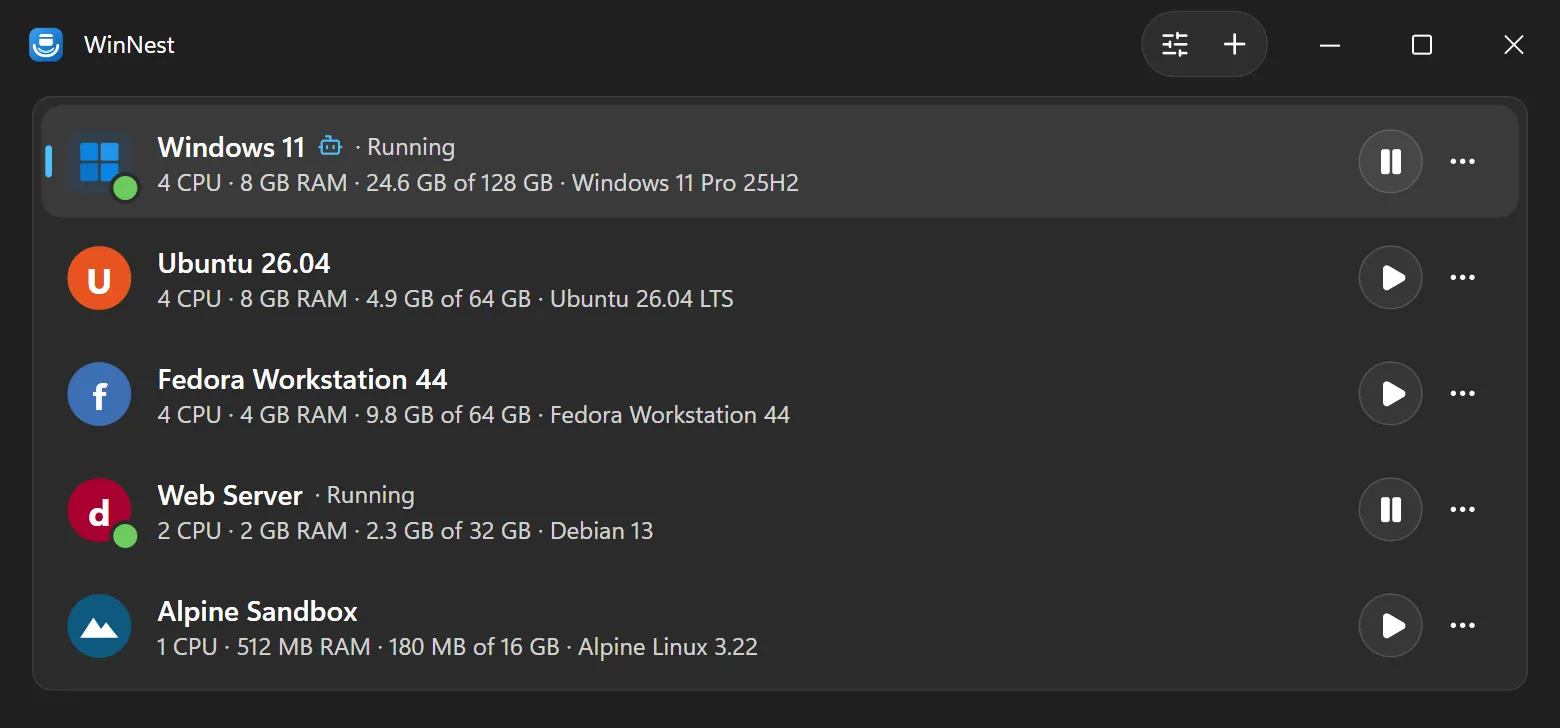
Windows × Linux, hardware-accelerated.
WinNest runs your machines on QEMU with the Windows Hypervisor Platform, on any edition of Windows 10 and 11, Home included. No Hyper-V Manager, no VirtualBox.
-
Windows 11
Bring the official ISO from Microsoft. WinNest sets up an unattended install with your account, the VirtIO drivers and the guest tools.
-
Ubuntu and Fedora
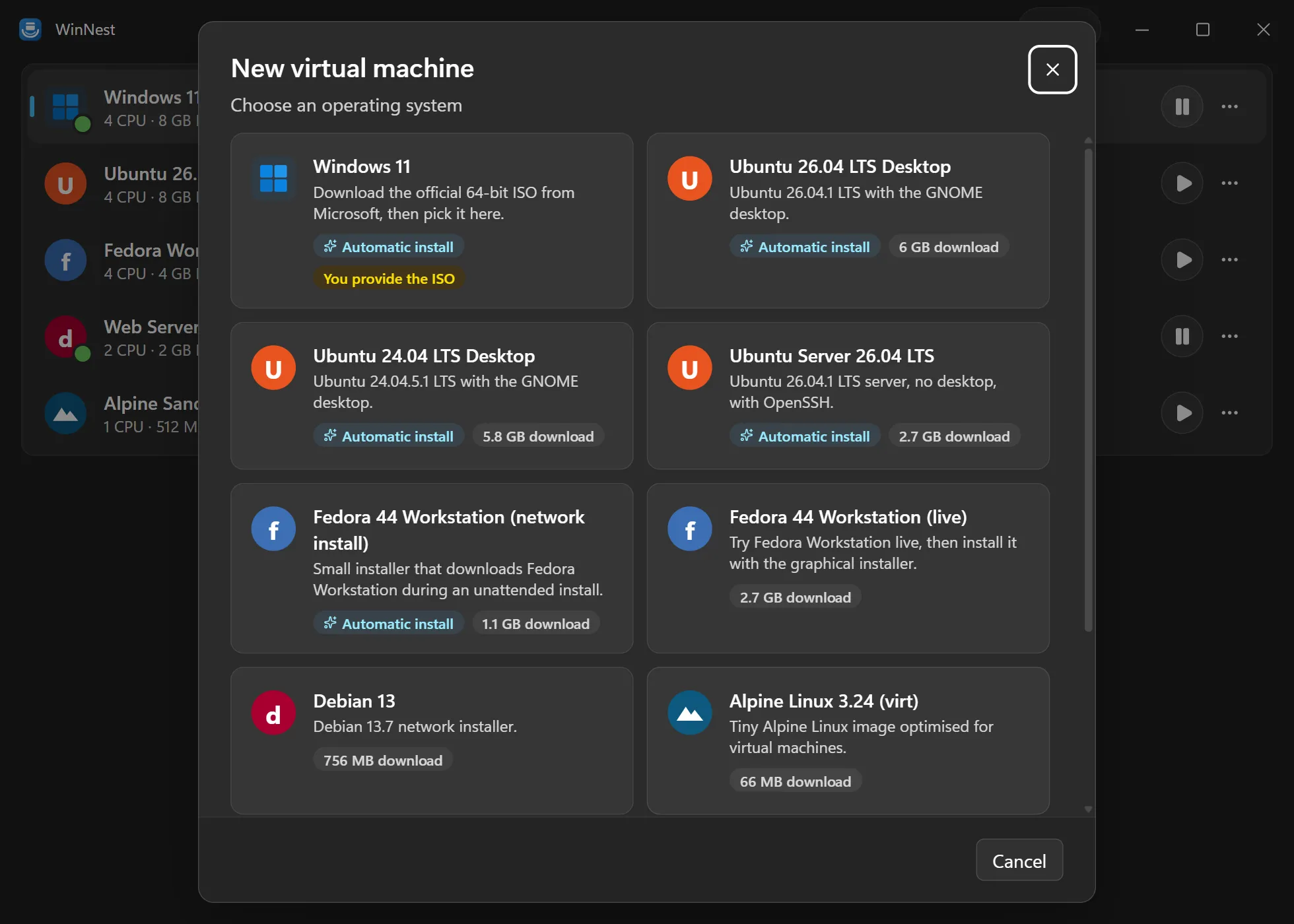
Downloaded from the official mirrors, checked against their published SHA-256 and installed unattended, with your user ready to sign in.
-
Debian, Alpine or any ISO
Start from the catalog or from an ISO you already have, or import a VMDK, VDI, VHD, VHDX or QCOW2 disk.
Everything a VM app should do.
And nothing that gets in your way.
-
Hardware acceleration
QEMU with the Windows Hypervisor Platform, on Windows 10 and 11, Home included.
-
Light on disk
A VM's disk only takes the space it actually uses, and grows as it needs.
-
Installed for you
Pick an OS: WinNest downloads it, verifies it and installs it while a cover keeps stray clicks out.
-
Snapshots
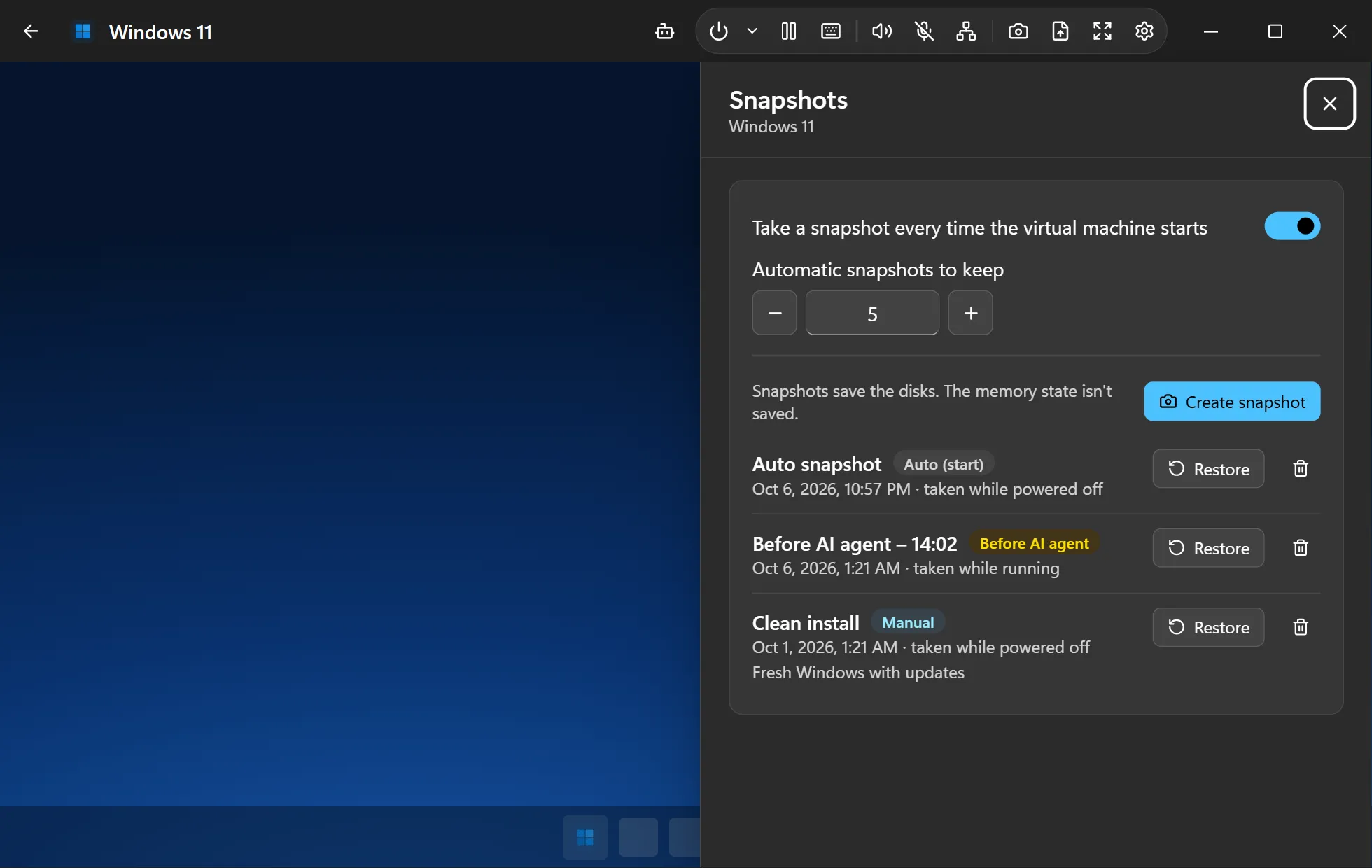
Save a VM in a click, running or not, and roll back in seconds. Or let WinNest take one every time it starts.
-
Port forwarding
Reach a web server or SSH in any VM through a port on your PC. Rules apply live.
-
Live settings
Rename a VM, grow its disk or change its port forwards while it runs.
-
Drag and drop
Drop files on a VM's window to copy them into it.
-
Shared clipboard
Copy and paste text between your PC and a VM that runs the SPICE guest agent.
-
Fits the window
The VM's screen follows the size of its window, and goes full screen when you want.
-
One process per VM
Close or restart WinNest and your VMs keep running; it reconnects to them when it opens.
-
Clone and import
Duplicate a VM in a click, or bring in a disk from VirtualBox, VMware or Hyper-V.
-
Made for Windows 11
Mica, light and dark themes, and the whole app in English and Spanish.
AI agents
Give your AI agent a PC of its own.
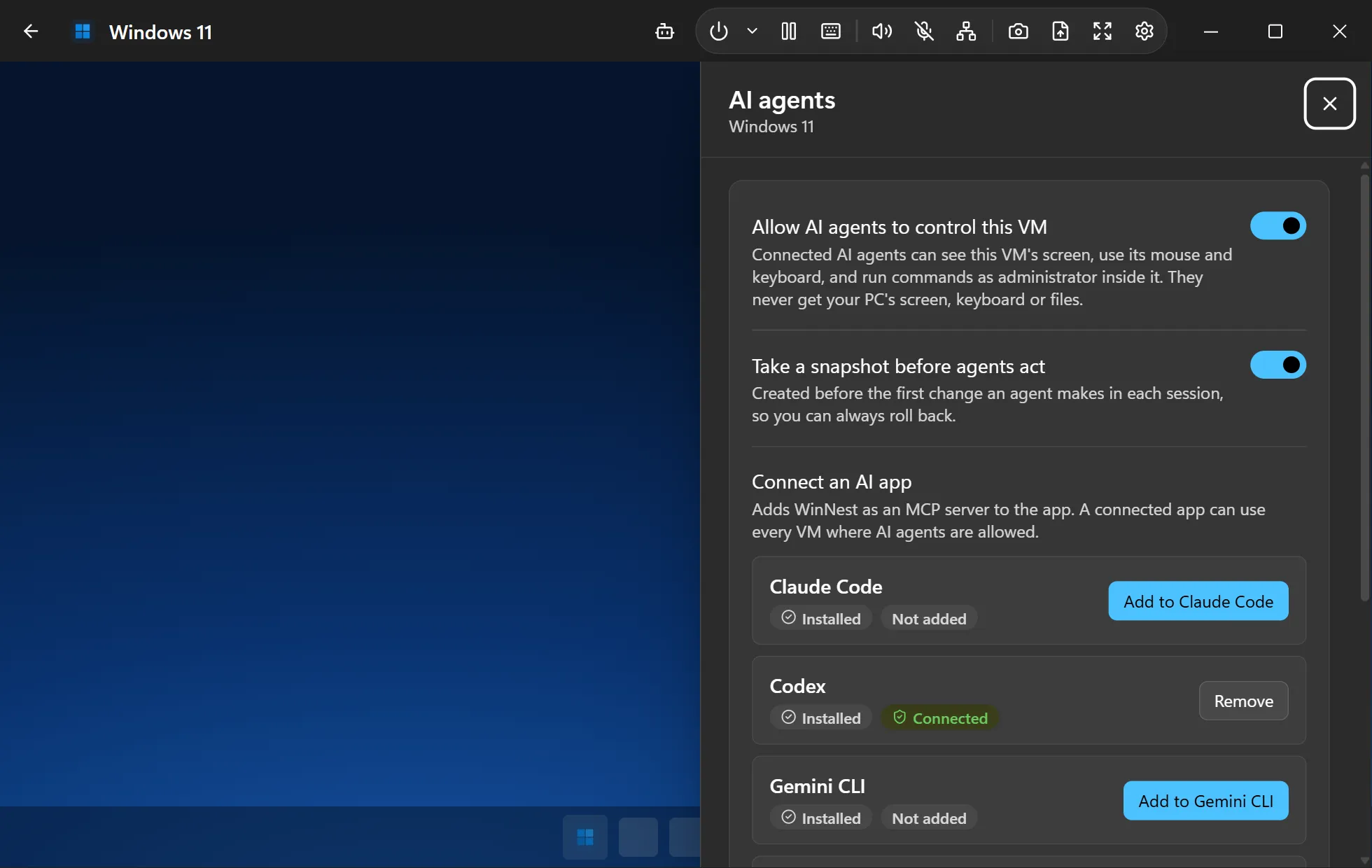
Claude Code, Codex or Gemini CLI can drive a whole Windows or Linux machine: see the screen, click, type and run commands. Your PC's screen, keyboard and files stay out of reach.
-
Stop clicking Allow. No permission prompts.
On your own PC an agent keeps stopping to ask for access. In a WinNest VM it uses the VM's own keyboard, mouse and shell, as a user or as an administrator, so it installs, configures and tests on its own.
-
A machine of its own. Your screen and files stay yours.
Agents never get your PC's screen, keyboard or files. Agent control stays off until you turn it on for a VM, and files the agent moves go through one folder you can see. Like any virtual machine, the VM keeps normal network access, including to services your PC offers on the network.
-
Undo anything. Snapshots built in.
Before an agent's first change, WinNest takes a snapshot of the VM. If something goes wrong, roll the whole machine back in seconds.
-
Set up in one click. Built-in MCP.
One click adds WinNest to Claude Code, Codex, Gemini CLI, Grok Build, Claude Desktop, Cursor or VS Code. 24 tools cover the screen, mouse and keyboard, commands, files, snapshots and port forwards.
Every OS on one PC. Get WinNest.
Free to download. A license is a one-time purchase, from $34.50.
Windows 10 or 11 · 64-bit